Merchants often need to repeat orders to suppliers, or produce very similar orders with slightly different products, quantities, or delivery details. Users can use pre-sets to save purchase order detail for future purchases, including supplier details, accounting details, shipping/billing details, and order products and quantities.
Before you start
Create a new preset from purchase order details
Create a sale order from Purchases → Purchases → + → Simple/Advanced/Service purchase, or select an existing purchase order.
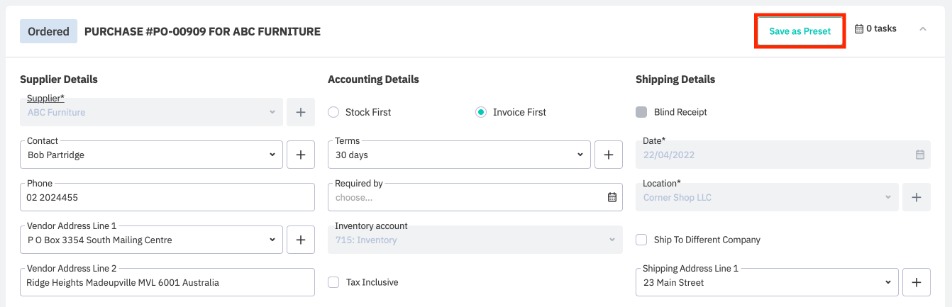
Fill in the document header and order details if it is a new order. Click Save as preset to save the order details for use for future purchases.
Use a preset
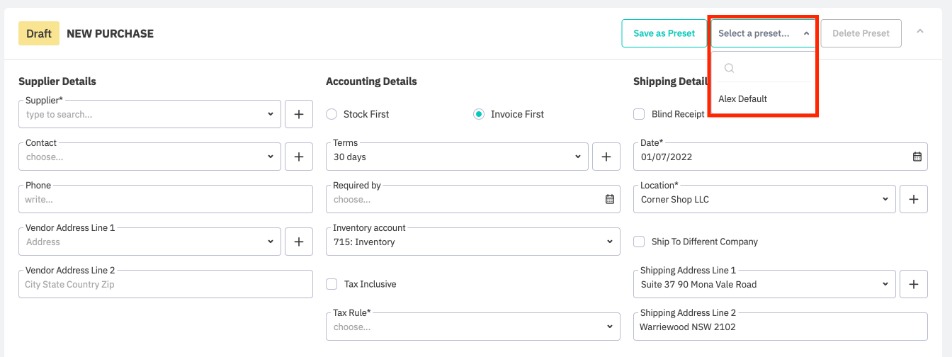
Create a purchase order from Purchases → Purchases → + → Simple/Advanced/Service purchase, or select a purchase order in draft status. Click Select a preset… and select a saved preset from the dropdown menu. This will pre-fill the purchase order fields with the saved information.
Note: Presets containing stock items can be applied to service purchases, however product details will not be copied. Supplier, accounting, and shipping details will be filled in with preset values.
Delete a preset
Click Select a preset… and select a saved preset from the dropdown menu. This will pre-fill the purchase order fields with the saved information. Click Delete preset to remove this preset from Cin7 Core.