This article contains all the MailMerge tables for templates for Cin7 Core POS application. Each table contains MailMerge fields that can be used to edit purchase document templates. Please see Template editing for a video tutorial of the template editing process and familiarize yourself with how to Manage Document and Email Templates before editing your templates. Cin7 Core POS document templates can be downloaded from Settings → Document and email templates → POS.
POS MailMerge fields are used in the following template types: POS Quote, Receipt, Closure Register Report, Price Label, Price Label Sheet, Price Label Cont19, Price Label Cont24, Price Label ContDual.
Note: Cin7 Core have a dedicated support team for resolving template issues, don't hesitate to contact Cin7 Core Support for help.
Before you start
- Manage Document and Email Templates (required) - please start here first if you are unfamiliar with how MailMerge fields work.
Important table structure information
All sections in a template must be contained within TableStart and TableEnd tags. This defines which table the mail merge fields data will be pulled from.
IMPORTANT: POS templates can also contain Global Variables, that do not need to be within a parent tag to function. Change the structure as little as possible, including the order of tables, in order to preserve
If you need to customize standard templates, make sure that the opening tag for any table «TableStart:NAME» has the matching closing tag «TableEnd:NAME», or your template will not work. Try to change the structure as little as possible to preserve the template functionality.
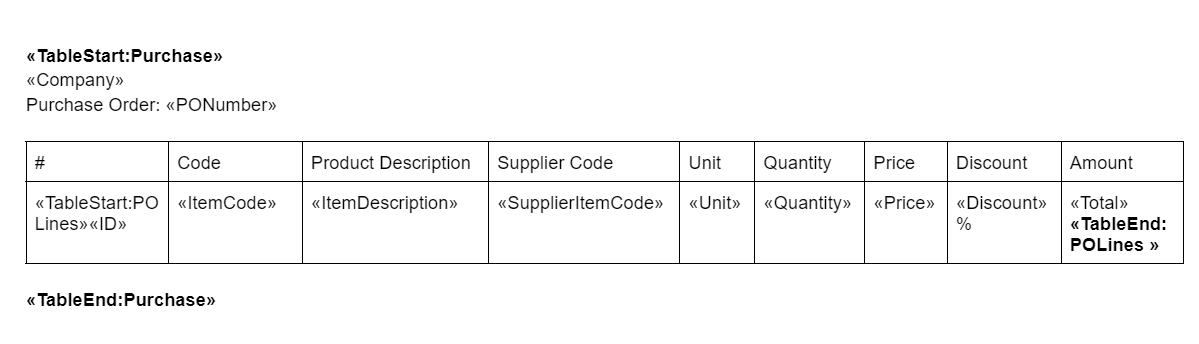
Parent table fields can be used in child tables but child table fields can only be used within the child table. In the sample table below, Purchase is the parent table and POLines is the child table.
Sample Structure:
The most important thing to remember when making changes to templates is to change the FIELD CODE, not the FIELD NAME.
Right-click any <<field name>> and click Toggle Field Codes to show the field code (displayed as {MERGEFIELD field code}).
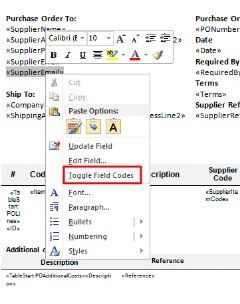
Windows users can toggle all field codes by holding down ALT + F9.
Mac users can toggle all field codes by pressing OPTION + F9.
FIELD NAMES: Don't change these.
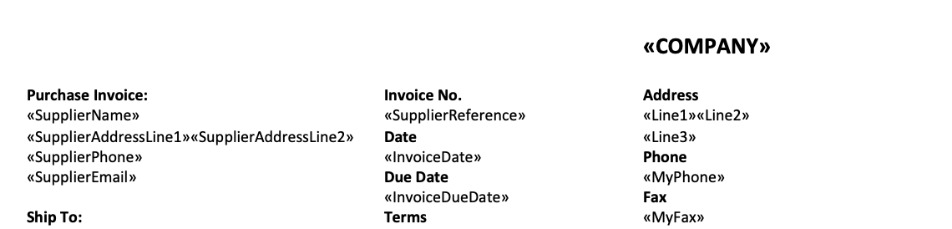
FIELD CODES: Change these.
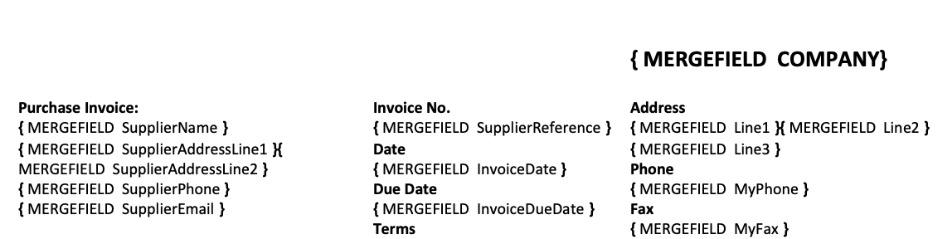
Once you have made your changes to the field code, right-click and click Update Field for the changes to take effect.
POS MailMerge fields
POS MailMerge fields are used in the following template types: POS Quote, Receipt, Closure Register Report, Price Label, Price Label Sheet, Price Label Cont19, Price Label Cont24, Price Label ContDual.
POS Receipt and POS Quote
1. Print settings to manage printing.
TableStart:PrintSettings
| Field Code | Description |
|---|---|
| FontScaleRelativeTo-3inch | Treats current receipt width relative to 3inch paper width. It means that if current printer is 2inch all widthes and font sizes will be reduced with ratio 2/3. If printer has 3inch parer width it will be printed as is. |
| BreakWordsInTable | Each table in generated receipt will have css: word-break = 'break-all' and word-wrap = 'break-word' |
TableEnd:PrintSettings
2. Cash management receipt.
Used to print opening float and to print receipt for each cash management operation.
TableStart:CashManagementReceipts
| Field Code | Description |
|---|---|
| CashManagementOperation | Name of current cash management operation |
| CashManagementAmount | Amount of current cash management operation |
| CashManagementNotes | Notes for current cash management operation |
| Parent.<any of main receipt fields> | This construction allows to use not table fields from main receipt in this receipt. For instance, Parent.OutletName will insert Outlet name |
TableEnd:CashManagementReceipts
3. Worldpay card payment provider receipt template
Used to print card payment receipt from POS on POS attached printer. All field below should be placed within the VantivTerminalReceipts table, it's Worldpay's (formerly Vantiv) rule.
TableStart:VantivTerminalReceipts
| Field Code | Description |
|---|---|
| VantivApplicationID | Application ID |
| VantivMerchantID | Merchant ID |
| VantivTerminalID | Terminal ID |
| VantivReferenceNo | Reference Number |
| VantivAccountNo | Account Number |
| VantivCard | Card number with which payment was done |
| VanitvEntry | additional information |
| VantivTransactionID | Transaction ID |
| VantivApprovalCode | Transaction aproval code |
| VantivExpressResponseCode | Express response code |
| VantivResponseCode | Response code |
| VantivCryptogram | Additional information |
| VantivApprovedAmount | Amount that was paid. Can differ from requested amount |
| VantivSignature | Signature in internal format |
| Parent.<any of main receipt fields> | This construction allows to use not table fields from main receipt in this receipt. For instance, Parent.OutletName will insert Outlet name |
| TableStart:VantivTags | start tags table |
| key | Tag key |
| value | Tag value |
| TableEnd:VantivTags | end of tags table |
TableEnd:VantivTerminalReceipts
4. Tyro payment provider receipts
Tyro returns ready to print receipts so here only placeholders for this receipts.
TableStart:TyroTerminalReceipts
| Field Code | Description |
|---|---|
| MerchantReceipt | Merchant receipt copy to print |
| CustomerReceipt | Customer receipt copy to print |
TableEnd:TyroTerminalReceipts
5. Linkly Cloud payment provider receipts
TableStart:LinklyTerminalReceipts
| Field Code | Description |
|---|---|
| MerchantReceipt | Merchant receipt copy to print |
| CustomerReceipt | Customer receipt copy to print |
TableEnd:LinklyTerminalReceipts
6. Main receipt template fields
Global Variables
| Field Code | Description |
|---|---|
| ReceiptNumber | Receipt number |
| Date | Sale date |
| OutletName | Outlet name where current sale was done |
| RegistryName | Register name where this sale was done |
| CheckoutProductCount | Number of items in receipt |
| TotalBasePrice | Total Price Before Discount |
| TotalItemDiscount | Total Item Discount |
| SubTotal | Sub-total of sale |
| Discount | Total sale discount |
| CalculatedTax | Total tax for sale |
| Total | Total to pay |
| Balance | Amount that is left to pay. In case of partial payments shows what should paid to complete sale/refund |
| Received | Amount of money that was received by cashier |
| Change | Change that was returned by cashier to client |
| ReceiptBarCode_code93, ReceiptBarCode_code128, ReceiptBarCode_ean8, ReceiptBarCode_ean13, ReceiptBarCode_industrial2of5, ReceiptBarCode_upca, ReceiptBarCode_upce |
Barcode placeholder for different supported formats |
Outlet Information
TableStart:OutletInfo
| Field Code | Description |
|---|---|
| City | Outlet location's city |
| Line1 | Outlet location's first address line |
| Line2 | Outlet location's second address line |
| Country | Outlet location's country |
| Postcode | Outlet location's postcode |
| State | Outlet location's state |
| Description | Outlet location's description |
TableEnd:OutletInfo
Sales Representative Information
TableStart:SalesRepresentative
| Field Code | Description |
|---|---|
| SalesRepresentativeName | Sales representative Name |
TableEnd:SalesRepresentative
Customer Information
TableStart:Customer
| Field Code | Description |
|---|---|
| CustomerName | Customer name |
| TaxNumber | Customer tax number |
| CustomerLoyaltyPoints | Customer total loyalty points |
| CustomerLoyaltyPointsUsed | Customer loyalty points used for current sale payment |
| SaleLoyaltyPoints | Loyalty points that was earned by this sale payments |
| TotalLoyaltyPoints | Sum of all loyalty operations above |
| Line1 | Line1 pulled from customer’s default shipping address |
| Line2 | Line2 pulled from customer’s default shipping address |
| City | City pulled from customer’s default shipping address |
| State | State pulled from customer’s default shipping address |
| Postcode | Postcode pulled from customer’s default shipping address |
| Country | Country pulled from customer’s default shipping address |
| Customer email from default contact or first contact if no default was set | |
| Phone | Customer phone from default contact or first contact if no default was set |
| MobilePhone | Customer mobile phone from defaults contact or first contact if no default was set |
| PaymentTerm | Customer payment term name |
TableEnd:Customer
Customer Information
TableStart:CustomerAttributes
| Field Code | Description |
|---|---|
| Name | Name of attribute from attribute set |
| Value | Attribute value for customer |
TableEnd:CustomerAttributes
Products in Sale
TableStart:CheckoutProducts
| Field Code | Description |
|---|---|
| ProductSku | Product SKU |
| ProductName | Product Name |
| ProductSerialNumber | Product Serial Number if exists |
| ProductCount | Product items count |
| ProductPrice | Product Price |
| ProductAmount | Total Amount Per Line |
| ProductDiscountedPrice | Discounted Price |
| ProductDiscountedTotal | Discounted Total Per Line |
| ProductDiscount | product discount |
| ProductTaxPercent | Tax applied to product as a percentage |
| AdditionalAttribute1 | Product Additional Attribute 1 |
| AdditionalAttribute2 | Product Additional Attribute 2 |
| AdditionalAttribute3 | Product Additional Attribute 3 |
| AdditionalAttribute4 | Product Additional Attribute 4 |
| AdditionalAttribute5 | Product Additional Attribute 5 |
| AdditionalAttribute6 | Product Additional Attribute 6 |
| AdditionalAttribute7 | Product Additional Attribute 7 |
| AdditionalAttribute8 | Product Additional Attribute 8 |
| AdditionalAttribute9 | Product Additional Attribute 9 |
| AdditionalAttribute10 | Product Additional Attribute 10 |
| ProductShortDescription | Product short description |
TableEnd:CheckoutProducts
Surcharges Information
TableStart:Surcharges
| Field Code | Description |
|---|---|
| Surcharge | Surcharge amount if exists |
TableEnd:Surcharges
Payments Information
TableStart:Payments
| Field Code | Description |
|---|---|
| PaymentTypeName | Name of payment type (cash, custom payment and so on) |
| PaymentDate | Payment date |
| PaymentAmount | Payment amount |
TableEnd:Payments
Sale's Notes
TableStart:Notes
| Field Code | Description |
|---|---|
| SalesNote | Sale's note |
TableEnd:Notes
Register Closure Summary
Global Variables
| Field Code | Description |
|---|---|
| SalesRepresentative | Current register user identificator. Can be cahier name, outlet name, custom text. This can be set on POS integration page |
| OutletName | Outlet name |
| RegistryName | Register name |
| OpeningTime | Register open time |
| ClosingTime | Register close time |
| CashExpected | Сash amount that is calculated by Cin7 Core |
| CashCounted | Сash amount that is really counted in till |
| CashCountedToBank | Cash counted minus sum of all manual cash operations |
| CashReceived | Cash expected minus sum of all manual cash operations |
| TotalExpected | Sum of all expected amounts |
| TotalCounted | Sum of all counted amounts |
Cash Movements
TableStart:CashMovements
| Field Code | Description |
|---|---|
| UserName | Current register user identificator. Can be cahier name, outlet name, custom text. This can be set on POS integration page |
| Amount | amount of operation |
| Type | operation type name |
TableEnd:CashMovements
Non Cash Operations
TableStart:NonCashPayments
| Field Code | Description |
|---|---|
| PaymentTypeName | Payment type name |
| CashExpected | Expected amount of this payment type |
| CashCounted | Counted amount of this payment type |
TableEnd:NonCashPayments
Price Label
TableStart:ProductLabels
| Field Code | Description |
|---|---|
| Name | Product name |
| Code | Product SKU |
| ProductPrice | Product price |
| ProductBarCode_code93, ProductBarCode_code128, ProductBarCode_ean8, ProductBarCode_ean13, ProductBarCode_industrial2of5, ProductBarCode_upca, ProductBarCode_upce |
Barcode placeholder for different supported formats |
TableEnd:ProductLabels