By default, each Shopify order is captured as an individual sale. This gives you the most control of each order, lets you edit orders before processing, supports individual credit notes and refunds in Core, and lets Core update Shopify with order status changes. This option is best if you receive orders through Shopify but process and fulfill those orders in Cin7 Core.
However, you can choose to group Shopify orders together into a single order with the same customer. This option is better if you process everything, including refunds, through Shopify, but transfer information to Cin7 Core to record accounting transactions, order history, and inventory movements.
You can choose how often Cin7 Core consolidates your Shopify orders: every 3, 6, 12, or 24 hours.
Before you start
- You should have connected your Shopify store.
Set up Shopify consolidation
Normally, each Shopify order is a unique sale per customer. Each sale's fulfillment information syncs to Shopify.
When you enable consolidation, Cin7 Core groups orders into one sale for the selected time period and customer.
Fulfillment information does not sync back to Shopify for consolidated orders.
This is useful when you process a high volume of sales and want fewer summary sales to reconcile.
- Go to Integrations, then Shopify.
- Go to the Setup tab for your Shopify store.
-
Turn on Consolidate orders.
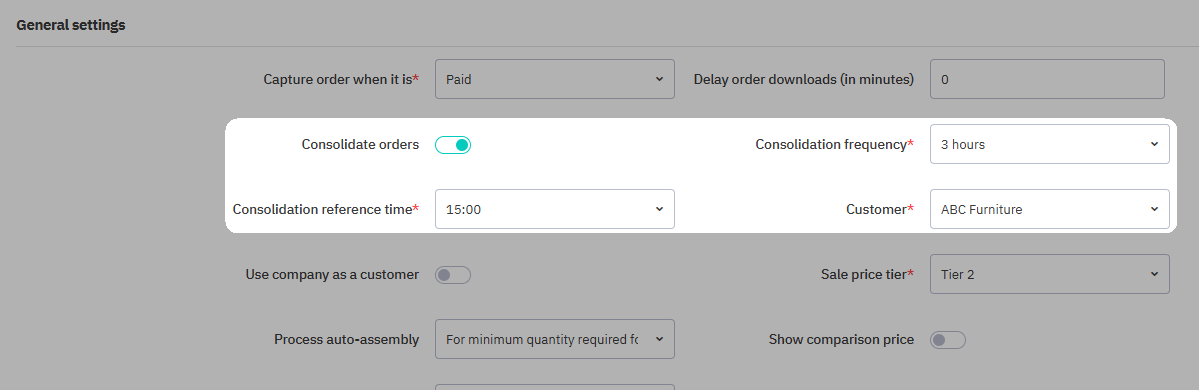
- Set Consolidation frequency to 3, 6, 12, or 24 hours.
- Set the Consolidation reference time. Cin7 Core runs your consolidation from that time. For example, if the frequency is every 3 hours and you set 10:00 am as the reference time, the consolidation runs at 10:00 am, then 1:00 pm, 4:00 pm, and so on.
- Select a Customer for when consolidation is enabled.
- Select Save.
Changes take effect from the next scheduled run. Each Shopify store has its own consolidation settings, so you can set different frequencies for different stores. To turn consolidation off, turn off Consolidate orders and save.
Consolidation example
Consolidation uses two settings to build a schedule: Consolidation frequency and Consolidation reference time. Cin7 Core divides the day into equal intervals, starting with your reference time.
A clothing store with steady orders sets the reference time to 06:00 with a 6-hour frequency. This creates four consolidation windows each day:
| Window | What gets consolidated | Sale created |
|---|---|---|
| 06:00–12:00 | Morning orders | At 12:00 |
| 12:00–18:00 | Afternoon orders | At 18:00 |
| 18:00–00:00 | Evening orders | At 00:00 |
| 00:00–06:00 | Overnight orders | At 06:00 |
The accountant sees four summary sales per day in Cin7 Core instead of hundreds of individual transactions.
Other frequency options: Set to 3 hours for more frequent updates during high-volume periods like flash sales. Set to 24 hours for a single daily summary if you process fewer orders. Set to 12 hours for a twice-daily summary aligned with morning and evening.
Settings that affect consolidation
Several Shopify settings work together to control consolidation. Review them before you finalize your setup.
Capture order when it is
The Capture order when it is setting decides when an order is captured and which order date Cin7 Core uses for consolidation.
- Created: Consolidation uses the order's created date.
- Paid: Consolidation uses the latest payment date. Consolidating paid orders requires valid payment dates.
- Fulfilled: Consolidation uses the latest shipment date. Consolidating fulfilled orders requires a valid fulfillment date.
Delay order downloads and consolidation cutoff
You can use Delay order downloads (in minutes) to allow extra processing time or give Shopify more time to complete tasks. For example, if your consolidation runs at 3:00 pm and the delay is 30 minutes, an order that arrives at 2:45 pm is included in the next batch at 6:00 pm.
Processing mode and fulfillment behavior
The Pick, pack, and ship processing mode for online sales setting changes how Cin7 Core handles orders after capture when consolidation is enabled.
- Draft, No picking, Auto pick, and Auto pick + pack are not recommended when consolidation is enabled.
- Auto pick + pack + ship can be used when consolidation is enabled, but shipping information is only sent to Shopify when consolidation is disabled.
- Load data from Shopify is recommended when fulfillment is completed in Shopify.
Fulfillment information does not sync back to Shopify for consolidated orders.
Pending orders and manual processing
If you enable consolidation, your orders will wait in Pending orders until consolidated. Without consolidation, orders usually process into sales within a few minutes. You can convert a pending order into an individual sale to bypass consolidation.
Refunds and cancellations with consolidation
You can return, refund, or cancel consolidated or individual Shopify orders. If an order is canceled in Shopify before it is processed, Cin7 Core voids or removes the corresponding pending sale automatically.
Settings only available when consolidation is disabled
Some settings are not available when multiple Shopify orders are merged into one consolidated sale. These settings are only available when consolidation is disabled: