You can now download and sync your Shopify exchanges in Cin7 Core. When a customer exchanges an item, the original order handles the return and refund with a credit note and links to a new exchange order for the replacement product. Together, your original order and the new exchange order keep your stock levels and accounting accurate.
Exchanges support Web, POS, and online pickup orders. Consolidated orders and exchanges older than 90 days aren't supported.
Before you start
- Make sure each of your Shopify connections is up to date. Exchanges need the latest Shopify permissions, so update each Shopify connection to grant them.
- You should be familiar with downloading orders from Shopify and with returns, refunds, and cancellations in Shopify.
Exchange an order in Shopify
An exchange starts when a customer returns a fulfilled order in Shopify and chooses a different product in its place. For example, a customer returns a Size 12 black T-shirt and exchanges it for a Size 10 black T-shirt.
When Shopify sends the exchange, Cin7 Core will:
- On the parent order:
- Create a credit note to process the return.
- Link the new exchange order.
Convert to an Advanced sale order.
- On the exchange order:
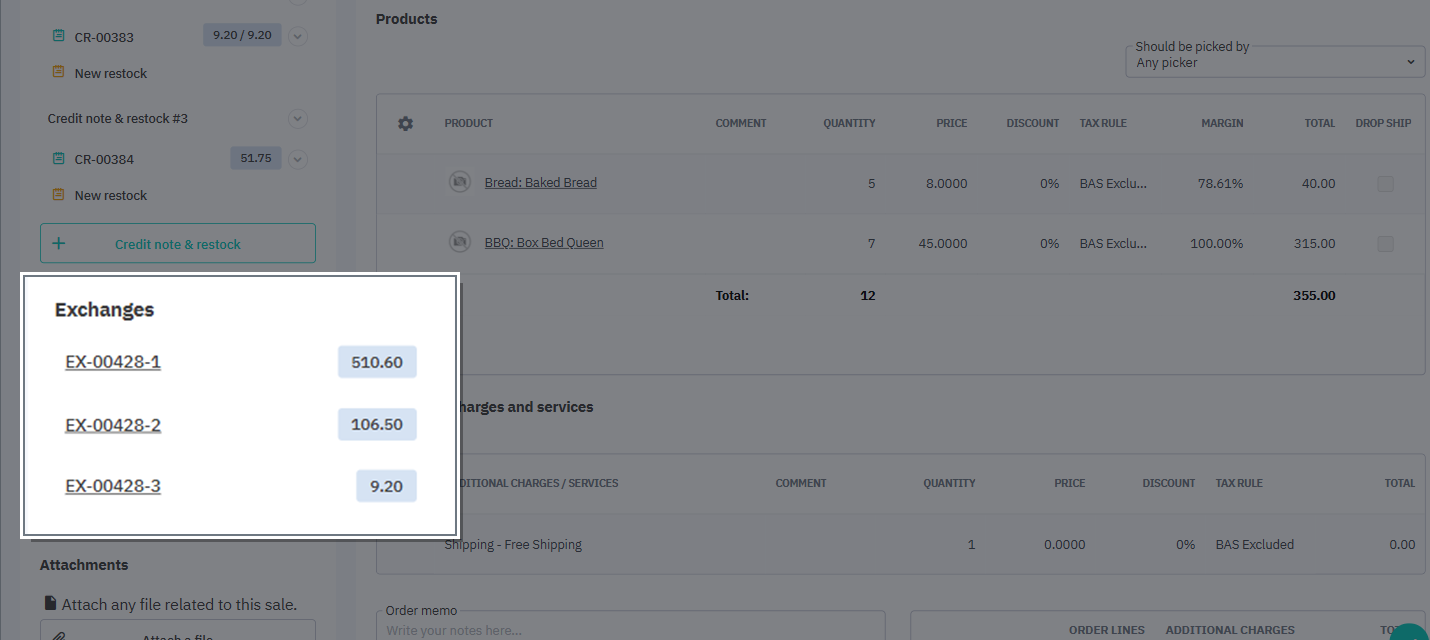
- Create the exchange order in Cin7 Core. This has the prefix EX followed by the parent order number, then the exchange number (for example, EX-1001-1).
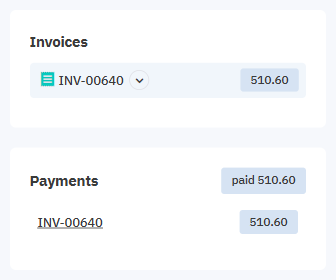
- Payment for the exchange is in the Payments section. This uses the refunded amount from the parent order. If the new item is more expensive, the new exchange will calculate the amount owing.
The exchange order uses the same order, fulfillment, and financial workflow as any other Advanced sale order.
If Cin7 Core can't process an exchange, it records the reason in the Operations log and continues with your other orders. Cin7 Core automatically retries most skipped exchanges on a later run.
Exchange payments and refunds
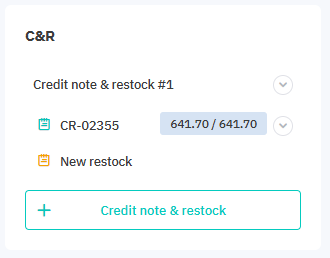
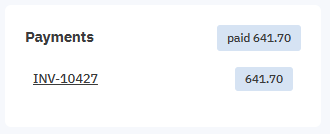
When Cin7 Core downloads an exchange, it creates a credit note on the parent order for the returned item, then uses that credit to pay the exchange order's invoice.
On the parent order, the C&R section holds the credit note for the returned item.
On the exchange order, the Payments section shows the exchange invoice paid in full by that credit. In this example the returned item and the new item are the same price, so there's nothing left to pay or refund.
What happens with the payment depends on the price of the new item:
- Same price
The customer doesn't make any payment as the value is the same. The parent order (in C&R) and the exchange order (in Payments) show the value of the exchanged item. - New item costs more
The customer pays the difference as an extra payment. The parent order shows the credit for the returned item(s) in the C&R section. The exchange order shows that credit plus the extra payment in the Payments section. - New item costs less
The customer is refunded the difference through a Shopify refund. The parent order shows the credit for the returned item(s) in the C&R section, with part applied to the exchange and the rest refunded to the customer. The exchange order shows the part of the credit that covers the new item in the Payments section.
View connected exchanges and orders
You can view the parent sales order for the exchange. This is the sales order that the customer is returning an item from. Often, this is the original order. But if the customer has exchanged different items a few times, this can be up to 10 exchanges since the original order.
You can quickly view the exchange order, other exchanges, and the parent sales order.
- In Sale, open the exchange sale.
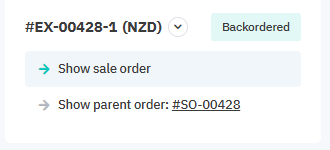
To go to the parent order, select Show parent order on the exchange sale.
On the parent order, go to the Exchanges section. This section lists each exchange sale with its number and order total.
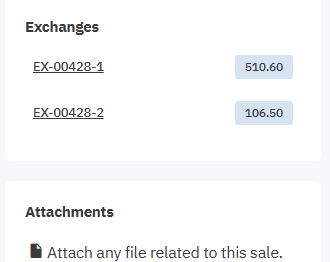
- Select an exchange sale to open it.
For complex exchanges, you can have sub-exchanges. For example, someone exchanges an item multiple times. The previous exchange would be the parent for the new exchange. Cin7 Core links exchanges into a chain of up to 10 levels, so you can trace an item through every exchange.
Examples
A simple exchange
Ada orders a blue hoodie in Medium, a water bottle, and a beanie in Shopify order 1050. The hoodie doesn't fit, so she returns it in Shopify and exchanges it for the same hoodie in Large.
When the exchange downloads to Cin7 Core:
- Cin7 Core refunds and restocks the Medium hoodie on order 1050.
- Cin7 Core creates one exchange sale, EX-1050-1, for the Large hoodie and takes it out of stock.
- The Large hoodie is the same price, so there's no extra payment. If it cost more, Cin7 Core would record a payment for the difference.
- Order 1050 shows EX-1050-1 in its Exchanges section, and EX-1050-1 links back to order 1050.
A chained exchange
A week later, Ada decides the Large hoodie is too warm and exchanges it again in Shopify, this time for a lightweight jacket.
When the second exchange downloads to Cin7 Core:
- Ada received the Large hoodie through the earlier exchange, so Cin7 Core applies the return credit note to EX-1050-1 instead of order 1050.
- Cin7 Core creates a new exchange sale, EX-1050-1-1, for the jacket and links it to EX-1050-1. This forms a chain from order 1050 to EX-1050-1 to EX-1050-1-1.
- The Exchanges section on order 1050 still lists only EX-1050-1, its direct exchange. You'll find EX-1050-1-1 in the Exchanges section of EX-1050-1.
An exchange for a cheaper item
Ben buys a jacket for $120 in Shopify order 1080. He returns it and exchanges it for a $90 coat.
When the exchange downloads to Cin7 Core:
- Cin7 Core creates a credit note on order 1080 for the returned $120 jacket.
- Cin7 Core creates one exchange sale, EX-1080-1, for the $90 coat and takes it out of stock.
- $90 of the credit settles the exchange invoice, and the remaining $30 is refunded to the customer on order 1080's credit note, following the usual Shopify refund process.
- Order 1080 shows EX-1080-1 in its Exchanges section, and EX-1080-1 links back to order 1080.
Fulfill exchange sales
Exchange sales follow your existing Shopify fulfillment settings, including:
- Enable partial fulfillment
- Send tracking URL
- Create fulfillment in Shopify even if a tracking number is not available
The default pick, pack, and ship status of an exchange sale follows your Shopify Pick, pack and ship process mode for online sales setting.
Fulfillment updates sync between Cin7 Core, your shipping integrations, and Shopify in the same way as your other Shopify orders.
Exchange order locations
Shopify POS can change the exchange order location compared to online or web orders.
- For online returns and exchanges, the exchange sale uses the same location as a regular online order, based on your Shopify settings: Pick, pack and ship process mode for online sales, Use Shopify location, and Location for online sales.
- For POS returns and exchanges, the exchange sale uses the location where the exchange was processed (the location that provided the new item). For example, if a customer buys an item at Store 1 but returns and exchanges it at Store 2, the exchange sale uses Store 2.
Historical returns and exchanges
Cin7 Core will create exchange orders for any Shopify order (even orders before Exchanges was released). If you created a credit note for a Shopify order manually, Cin7 Core will now create an exchange for that order as well.
If you want to prevent any updates to your older orders, you can adjust your Order lock date to prevent Cin7 Core from processing any exchanges or orders before that date.