The Sales module has three tabs, the General, Accounting, and Fulfillment. The information and order statuses displayed on the View All Sales page depend on the selected tab. Available actions and filters also depend on the selected tab.
Note: Advanced sales in General tab will have the status Ordered or Backordered until they have been fully fulfilled and invoiced, when the status will change to Completed. For advanced sales, you can hover over the fulfillment and invoice icons to view partial fulfillment and partial invoice status.
We recommend using the Fulfillment tab and enabling the optional table columns Invoice Status and Payment status for following the status of orders with multiple invoices, fulfillments, and payments.
Users will need the Sales List & Tasks permission in order to use this feature.
General
The General tab opens by default when you go to Sales → Sales. Filter the list by required by date or type of sale (Awaiting Fulfillment, Awaiting Payment, Pending Orders, etc.). Each type of sale filter can correspond to one or more order status values. You can also import sales task via CSV file from this page.
Search sale orders via the box in the top-left. In the General tab, sales can be searched by Order number, To (i.e. customer name), Contact, Phone, Email, Ref, Documents, Carrier, Tracking Numbers, Shipping Line 1, Sale Rep, and Location.
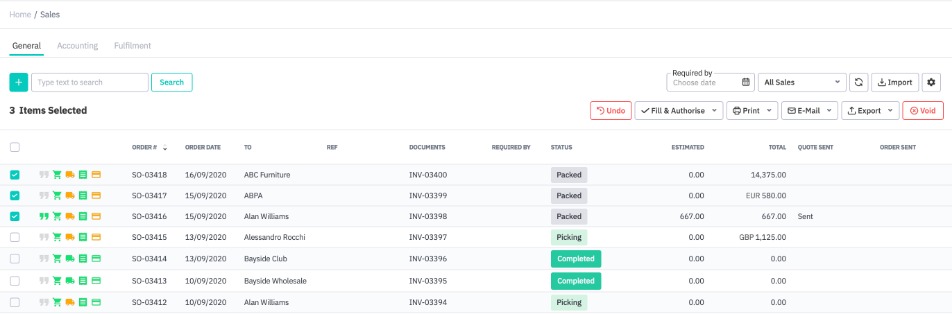
Select one or more sales to make the actions toolbar visible. The following bulk actions are available from the General tab:
- Undo: Return sale to draft, without deleting information.
- Fill and authorize: Quickly auto-fill and authorize several steps in the sales process.
- Print: Print sales documents for selected sales or save as PDF.
- Email: Email sales documents to the customer for selected sales.
- Export: Export Accounts Receivable information, 3PL Shipment List, or Sales task information in CSV format.
- Void: Voids sale, removing all sale information.
In General tab, each sale will have a series of icons (Quote, Order, Fulfillment, Invoice, Payment) listed to give you information about the sale status. The order of the icons depends on whether you have selected Stock First or Invoice First for your sales process (Settings → General settings → Sales process customization).
- Icons in gray are not available, or not available yet. i.e:
- A sale order where the quote has been skipped will have a gray quote icon.
- An order that has not yet been authorized will have gray fulfillment, invoice, and payment icons.
- An invoice that has not yet been authorized will have a gray payment icon.
- A dropship sale will have a gray fulfillment icon.
- Service sales will have a gray order and fulfillment icon.
- Icons in yellow are open and can be edited, but have not yet been authorized/completed. Yellow icons for advanced sales can indicate partially fulfilled or partially invoiced sales.
- Icons in green are completed/authorized.
Hover over each icon to see further details.
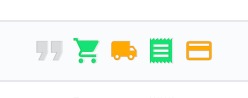
Advanced sales in the General tab will have the status Ordered or Backordered until they have been fully fulfilled and invoiced, when the status will change to Completed. For advanced sales, you can hover over the fulfillment and invoice icons to view partial fulfillment and partial invoice status.
We recommend using the Fulfillment tab and enabling the optional table columns Invoice Status and Payment status for following the status of orders with multiple invoices, fulfillments, and payments.
General fields
Fields can be added or removed by using the settings icon in the top right. Enable/disable table columns by checking the appropriate box, or reset the table to the default layout by clicking Reset Layout.
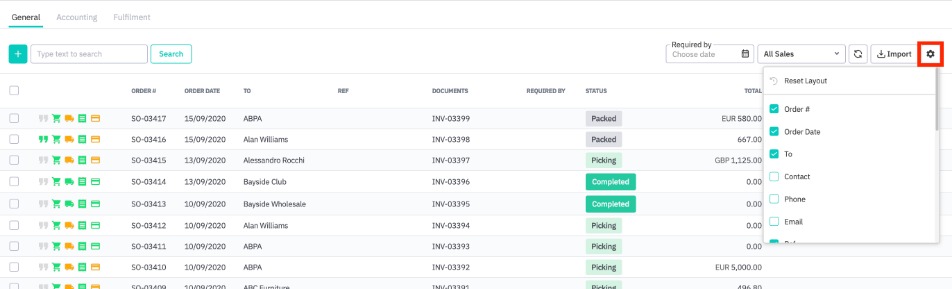
The following table fields are available for General tab. An asterisk (*) marks default table fields.
| Field | Description |
|---|---|
| Order #* | Sale order number. |
| Order Date* | Date field of sale order document header. |
| To* | Customer. |
| Contact | Default customer contact name. |
| Phone | Default customer contact phone number. |
| Default customer contact email. | |
| Ref* | Reference field of sale order document header. |
| Documents* | Invoice number/s and credit note number/s if applicable. For simple sales, an invoice number is automatically generated with each sale order. The field will be blank for unauthorized advanced sales. Advanced sales may have multiple invoice documents and credit note documents. |
| Required By | Required by date from sale order document header. |
| Carrier | Shipment carrier (requires authorized fulfillment). For advanced sales with multiple fulfillments, carriers are shown as a comma-separated list. |
| Tracking Numbers | Shipment tracking number/s. |
| Status | Order status value (see below). |
| Shipping Line 1 | Line 1 of customer shipping address. |
| Sale Rep | Sales representative. |
| Estimated | Quote total. |
| Total* | Order/invoice total. |
| Quote Sent | Shows if sale quote has been printed or sent to customer. |
| Order Sent* | Shows if sale order has been printed or sent to customer. |
| Location | Sale location. |
| Shipping Notes | Shipping notes field from sale order document header. |
| Sale Attribute 1-10 | If an additional attributes set has been selected in General settings → Sales process customization, the values will appear as optional table columns. |
General order status
Some sale orders can meet the conditions for multiple statuses. For example, an order could be both Picking and Invoiced. The status shown in this tab will depend on whether you have selected stock first or invoice first for your sales process. You can hover over each icon for a sale order to get more detailed information for each section.
Advanced sales in General tab will have the status Ordered or Backordered until they have been fully fulfillled invoiced, and paid, when the status will change to Completed. For advanced sales, you can hover over the fulfillment and invoice icons to view partial fulfillment and partial invoice status. You can also use the Accounting and Fulfillment tabs to follow an advanced sale in more detail.
Sale orders can have the following statuses in the General tab:
| Status | Description |
|---|---|
| Draft | A saved, unauthorized sale quote with no quote lines. |
| Estimating | A saved, unauthorized sale quote with quote lines. |
| Estimated | An authorized sale quote. If quote approval is enabled, the quote has also been approved. |
| Awaiting Approval | A sale quote which has been completed, but requires approval in order to be authorized. Only available if quote approval has been enabled. |
| Ordering | An unauthorized sale order. |
| Ordered | An authorized sale order. Advanced sales will have this status until they have been completed (fully invoiced, fulfilled, and paid). |
| Backordered | Sale orders that have been backordered due to not enough product in stock to complete the order. Backordered advanced sales will have this status until they have been completed (fully invoiced, fulfilled, and paid). |
| Picking | An authorized sale order but unauthorized pick. Invoice may or may not be authorized. Advanced sales will not display this status, even if they have been partially picked. |
| Picked | A sale order where pick has been authorized. Invoice may or may not be authorized. Advanced sales will not display this status, even if they have been partially picked. |
| Packing | An authorized pick but unauthorized pack. Invoice may or may not be authorized. Advanced sales will not display this status, even if they have been partially packed. |
| Packed | A sale order where pack has been authorized. Invoice may or may not be authorized. Advanced sales will not display this status, even if they have been partially packed. |
| Shipping | A authorized pack but unauthorized ship. Invoice may or may not be authorized. Advanced sales will not display this status, even if they have been partially shipped. |
| Invoicing | An authorized sale order but unauthorized invoice. Pick/Pack/Ship may or may not have been authorized. Advanced sales will not display this status, even if they have been partially invoiced. |
| Invoiced | An authorized invoice. Pick/Pack/Ship is not yet fully authorized. Advanced sales will not display this status, even if they have been partially invoiced. |
| Completed | A sale order or advanced sale order that has been completely fulfilled, completely invoiced, and completely paid. |
| Credited (Invoiced/credited) | A standalone authorized credit note, or a sale order where a credit note has been authorized. Refund may or may not have been made. Partially credited advanced sales will not appear under this filter. |
| Voided | A voided sale order. No further action can be taken. |
These filters are available by default, but you can also create custom filters for your sales list.
| Sale Filter | Description |
|---|---|
| All Sales | All Sales. Optional filters include all sales but voided, all sales but voided and rejected, all sales but voided and completed. |
| Draft Estimates | Sale quotes with status Draft, Estimating, Awaiting Approval. Sale quotes that have not yet been authorized. |
| Pending Orders | Sale quotes or sale orders with status Estimated, Ordering, Ordered. Sale orders that have not yet been authorized. |
| Backordered | Sale orders with status Backordered. Sale orders that have been backordered due to not enough product in stock to complete the order. |
| Awaiting Payment | Authorized sale orders of any status that have not yet been fully paid. Partially paid sale orders, including advanced sales, will be displayed with this filter. |
| Awaiting Fulfillment | Authorized sale orders of any status that have not yet been fully fulfilled. Partially fulfilled sale orders, including advanced sales, will be displayed with this filter. |
| Invoicing | Authorized sale orders with unauthorized invoices. Sales can have any fulfillment status. Partially invoiced sale orders, including advanced sales, will be displayed with this filter. |
| Invoiced | Authorized sale orders with authorized invoices. Sales can have any fulfillment status. Advanced sales will be displayed with this filter only if entire total has been invoiced. |
| Not Invoiced | An sale order or advanced sale order that has not been invoiced. Partially invoiced sale orders will not appear. Sale order can be unauthorized. |
| Completed | Sale orders or advanced sale orders that has been completely fulfilled and completely invoiced. Payment may or may not have been made. |
| Closed | Advanced sales can be marked as closed when no further invoicing or receiving is expected. |
| Orders to Bill | An sale order or advanced sale order that has not been invoiced. Partially invoiced sale orders will not appear. Sale order must be authorized. |
| Awaiting Approval | Sale quotes awaiting approval. |
| Not Sent Quotes | Sale quotes that have been printed/saved as PDF but not emailed to the customer. |
| Not Sent Orders | Sale orders that have been printed/saved as PDF but not emailed to the customer. |
| Archived Quotes | Sale quotes that have not been authorized and converted to sale orders after a specified period of time. Quote archival/archival period is set from General settings → Sale process customization. |
| Rejected Quotes | Sale quotes that have been rejected. Only applicable if quote approval is enabled. |
Accounting
The Accounting tab shows in detail the authorization and payment status of estimates, invoices, and credit notes. Filter the list by required by date or type of sale (Overdue Invoices, Awaiting Payment, All Credit Notes, etc). Each type of sale filter can correspond to one or more order status values. You can also import sales task via CSV file from this page.
Each estimate, invoice, and credit note has its own line in the Accounting tab. E.g. An advanced sale with a quote and three invoices will have four entries in this tab.
Search sale orders via the box in the top-left. In the Accounting tab, sales can be searched by Order number, To (i.e. customer name), Contact, Phone, Email, Ref, Document, Sale Rep and Location.
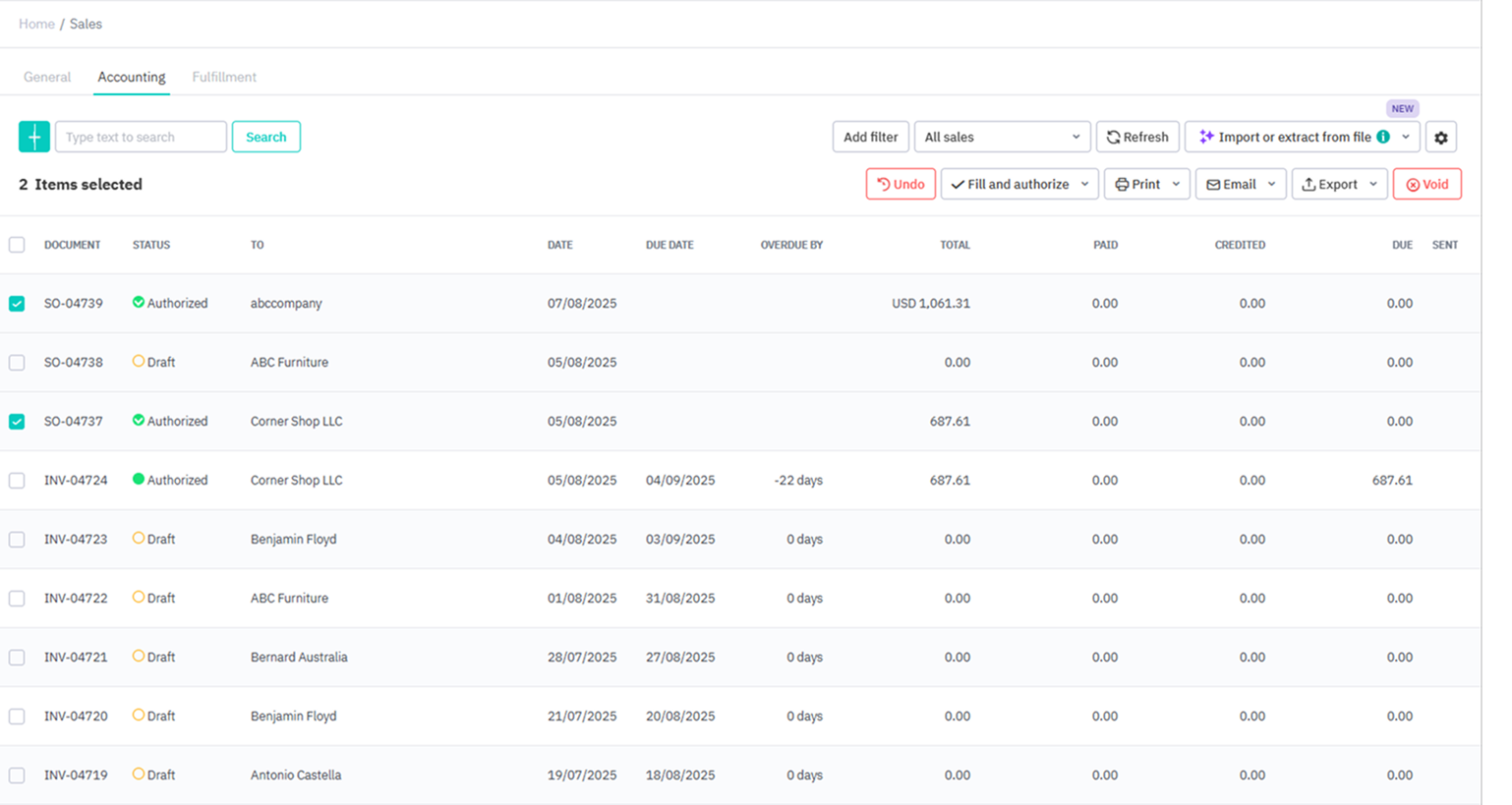
Select one or more sales to make the actions toolbar visible. The following bulk actions are available from the General tab:
- Undo: Return sale to draft, without deleting information.
- Fill & authorize: Quickly auto-fill and authorize several steps in the sales process.
- Print: Print sales documents for selected sales or save as PDF.
- Email: Email sales documents to the customer for selected sales.
- Export: Export Accounts Receivable information, 3PL Shipment List, or Sales task information in CSV format.
- Void: Voids sale, removing all sale information.
Accounting fields
Fields can be added or removed by using the settings icon in the top right. Enable/disable table columns by checking the appropriate box, or reset the table to the default layout by clicking Reset Layout.
Click on the Due field of an entry to view a popup showing prepayments, payments, credit note, and balance due information.
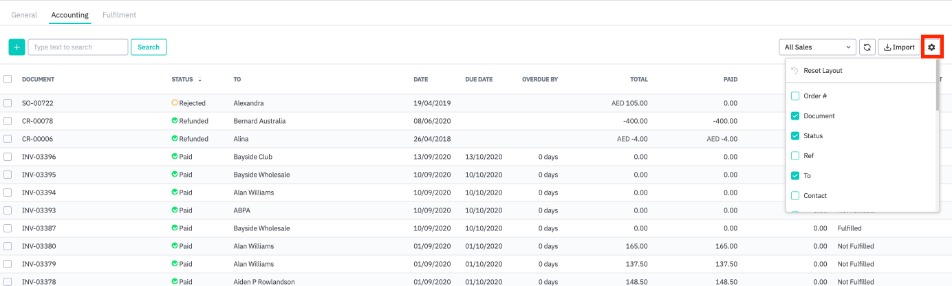
The following table fields are available for Accounting tab. An asterisk (*) marks default table fields.
| Field | Description |
|---|---|
| Order # | Sale order number |
| Document* | Estimate number, invoice number or credit note number. Each estimate number, invoice number or credit note number has its own line, even if multiple entries were generated for the same sale (e.g. advanced sales). |
| Status* | Order status value (see below). |
| Ref | Reference field of sale order document header. |
| To* | Customer. |
| Contact | Default customer contact name. |
| Phone | Default customer contact phone number. |
| Default customer contact email. | |
| Order Date | Date field of sale order document header. |
| Date* | Authorization date of sale invoice/credit note. |
| Due Date* | Due date of sale invoice/credit note. |
| Terms | Payment terms. |
| Overdue by | How many days payment is overdue by. Overdue payments are shown in red. |
| Sale Rep | Sales representative. |
| Total* | Invoice/credit note total. This value will be negative if for a credit note. |
| Paid* | Amount paid/refunded of invoice/credit note. This value will be negative if for a credit note. |
| Credited* | Amount unpaid or on credit. |
| Due* | Amount still to be paid/refunded of invoice/credit note. |
| Sale Attribute 1-10 | If an additional attributes set has been selected in General settings → Sales process customization, the values will appear as optional table columns. |
| Location | Sale location. |
| Fulfillment status | Whether sale has been fulfilled, not fulfilled, partially fulfilled, or is not available. |
| Sent* | Shows if invoice/credit has been printed/saved as PDF or emailed to the customer. |
Accounting order status
Sales can have the following statuses in the Accounting tab. Overdue invoices and credit notes will be highlighted in red.
| Status | Description |
|---|---|
| Draft | A sale quote, sale invoice, or credit note that has been saved but has not been authorized. Draft sale invoices may or may not have an authorized sale order. |
| Authorized (Invoice) | An authorized invoice that has not yet been fully paid. Invoices with partial payments will still show this status. |
| Authorized (Quote) | An authorized sale quote. Authorized sale orders may or may not have authorized invoices. |
| Paid | An invoice or credit note (that is part of a sale) that has been fully paid. Partial payments will not have this status. |
| Refunded | A standalone credit note that has been fully refunded. Credit notes that are authorized as part of a sale order will instead have the status Paid. |
| Rejected | An estimate that has been rejected. Only applicable if quote approval has been enabled. |
| Voided | A voided estimate, sale invoice, or credit note. No further action can be taken. |
These filters are available by default, but you can also create custom filters for your sales list.
| Sale Filter | Description |
|---|---|
| All Sales | All sale orders, sale invoices and credit notes. Optional filters include all sales but voided. |
| Draft Estimates | Unauthorized sale orders, unauthorized sale invoices, (may or may not have an authorized sale order), unauthorized credit notes. |
| All Estimates | Sale quotes of any status (Authorized, Draft, Archived, Rejected). Sale quotes may or may not have authorized invoices and payments. |
| Draft Invoices | Unauthorized sale invoices. |
| Awaiting Payment | Authorized sale invoices or credit notes which have not yet been fully paid/refunded. |
| All Invoices | Invoices of any status (Authorized, Draft, Paid, Voided). |
| Draft Credit Notes | Unauthorized credit notes. |
| All Credit Notes | Credit notes of any status (Authorized, Draft, Voided, Paid, Refunded). |
| Overdue Invoices | Authorized sale invoices which have not been fully paid within the payment term. Overdue invoices are highlighted in red. |
| Manual Journals to approve | Authorized sale invoices with manual journals that have not yet been authorized. |
| Awaiting Approval | Sale estimates awaiting approval. Only applicable if quote approval is enabled. |
| Not Sent Estimates | Sale estimates that have been printed/saved as PDF but not emailed to the customer. |
| Not Sent Invoices | Sale invoices that have been printed/saved as PDF but not emailed to the customer. |
| Archived Estimates | Sale estimates that have not been authorized and converted to sale orders after a specified period of time. Quote archival/archival period is set from General settings → Sale process customization. |
| Rejected Estimates | Sale estimates that have been rejected. Only applicable if quote approval is enabled. |
Fulfillment
Under the Fulfillment tab, you can schedule/reschedule sales orders for picking, assign picking tasks to your staffers, and assign pickers to orders. Only orders that are ready for fulfillment (sale order has been authorized) are shown in this tab. Voided sales are removed from this tab.
We recommend this tab and enabling the optional table columns Invoice Status and Payment Status to follow the status of orders with multiple invoices/fulfillments.
Each type of sale filter can correspond to one or more order status values. The list can also be filtered by Required By Date. You can import sales task via CSV file from this page.
Search sale orders via the box in the top-left. In the Fulfillment tab, sales can be searched by Order number, To (i.e. customer name), Phone, Email, Ref, Carrier, Tracking Number, Shipping Line 1, Sale Rep and Location.
If you have enabled Sale order picking scheduled, you can set pickers and schedule orders for picking from this tab. See Scheduling sale order picking for more information. Sale order picking applies only to picking with Cin7 Core WMS.
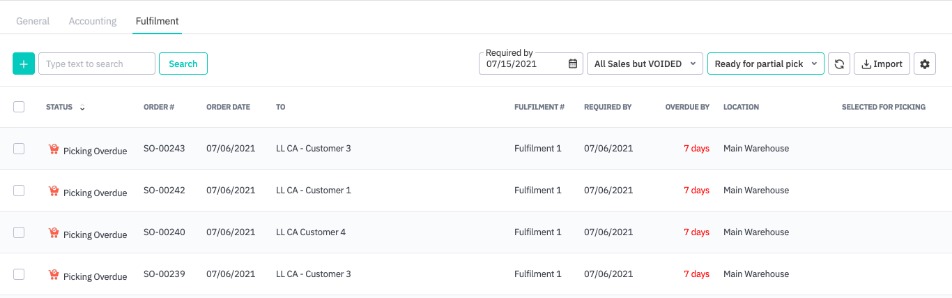
Select one or more sales to make the actions toolbar visible. The following bulk actions are available from the Fulfillment tab:
- Undo: Return sale to draft, without deleting information.
- Fill & Authorize: Quickly auto-fill and authorize several steps in the sales process.
- Print: Print sales documents for selected sales or save as PDF.
- Email: Email sales documents to the customer for selected sales.
- Export: Export Accounts Receivable information, 3PL Shipment List, or Sales task information in CSV format.
- Picking:Schedule picking, set the picker or clear picking for the selected sales. Picking is only available if you select either Ready for partial pick, Ready to pick, or Ready to start pick filters.
- Void: Voids sale, removing all sale information.
Fulfillment fields
Fields can be added or removed by using the settings icon in the top right. Enable/disable table columns by checking the appropriate box, or reset the table to the default layout by clicking Reset Layout. We recommend enabling the optional table columns Invoice Status and Payment Status to follow the status of orders with multiple invoices/fulfillments.
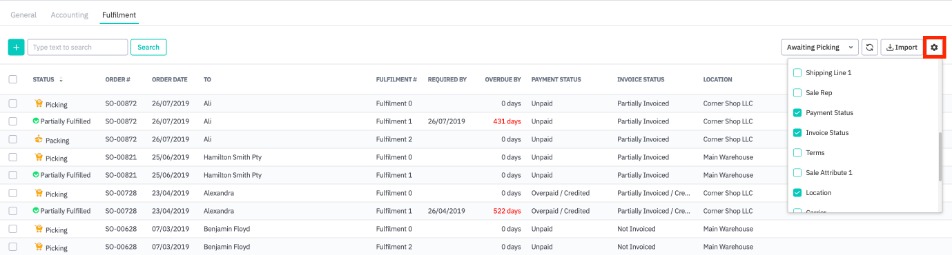
The following table fields are available for Fulfillment tab. An asterisk (*) marks default table fields.
| Field | Description |
|---|---|
| Status* | Order status value (see below). |
| Sale status | Sale status of the order (see sale status list) |
| Order #* | Sale order number. |
| Order Date* | Date field of sale order document header. |
| To* | Customer. |
| Phone | Default customer contact phone number. |
| Default customer contact email. | |
| Fulfillment #* | Fulfillment number |
| Required By | Required by date from sale order document header |
| Overdue By | Number of days past Required by date. |
| Ref | Reference field of sale order document header. |
| Shipping Line 1 | Line 1 of customer shipping address. |
| Sale Rep | Sales representative |
| Payment Status | Payment status of sale order. Can be: Paid: Invoice has been fully paid. Prepaid: Partial or full payment has been applied to quote. Partially Paid: Partial payment has been applied to invoice. Unpaid: No payment has been applied to invoice. Overpaid: Invoice has been overpaid. Overpaid/Credited. Refund has been applied to credit note. |
| Invoice Status | Invoice status of sale order. Can be: Invoiced: Invoice has been authorized for the sale total. Invoiced/Credited: Invoice has been authorized for the sale total. A credit note of any value has been authorized. Not Invoiced: Invoice has not been authorized for part or all of the sale. Partially Invoiced: Part of the total has been invoiced (advanced sale). Partially Invoiced/Credited: Part of the total has an authorized invoice (advanced sale). A credit note of any value has been authorized. |
| Terms | Payment term for the customer/sale. |
| Sale Attribute 1-10 | If an additional attributes set has been selected in General settings → Sales process customization, the values will appear as optional table columns. |
| Location* | Sale location. |
| Carrier | Fulfillment carrier(s). If a sale has multiple fulfillments, carriers are shown as a comma-separated list. |
| Tracking Numbers | Fulfillment tracking number/s. |
| Selected for Picking | If Scheduling sale order picking has been enabled, this column will display when an order was scheduled for picking. Orders that have not been scheduled will have a blank entry in this column. |
| Picker | If Scheduling sale order picking has been enabled, this column will display an assigned picker for the order. Orders that can be picked by any picker will have a blank entry in this column. |
| Shipping Notes | Shipping notes field from sale order document header |
Fulfillment order status
Sale orders can have the following statuses in the Fulfillment tab:
| Status | Description |
|---|---|
| Picking | An authorized sale order with at least one item left to pick. Order may be partially picked and packed if an advanced sale. Current date is before the Required By date. |
| Picking Overdue | An authorized sale order with at least one unauthorized pick. Order may be partially picked and packed if an advanced sale. Current date is after the Required By date. |
| Packing | A fully picked sale order with at least one unauthorized pack. Order may be partially packed if an advanced sale. Current date is before the Required By date. |
| Packing Overdue | A fully picked sale order but at least one unauthorized pack. Order may be partially packed if an advanced sale. Current date is after the Required By date. |
| Shipping | A fully packed sale order with at least one unauthorized ship. Current date is before the Required By date. |
| Shipping Overdue | A fully packed sale order with at least one unauthorized ship. Current date is after the Required By date. |
| Partially Fulfilled | Order has been partially shipped. |
| Fulfilled | Order has been completely fulfilled. |
These filters are available by default, but you can also create custom filters for your sales list.
| Sale Filter | Description |
|---|---|
| All sales | All Sales ready for fulfillment. Sales must have authorized orders. Voided sales are not shown in this tab. |
| Awaiting picking | Any sale with authorized sale order with items that have not yet been picked. |
| Fulfilled | Sales where all items have been shipped to the customer. |
| Overdue sales | All sales where the picking, packing, or shipping is overdue. |
| Packing | Sales where pick has been authorized but there are still items left to pack. |
| Ready for partial pick | Sales ready for fulfillment with authorized orders. All orders in this tab have enough items in stock to fulfill part of the sale order. Enable this filter to see the Picking button. |
| Ready to pick | Sales ready for fulfillment with authorized orders. All orders in this tab have enough items in stock to fulfill the entire order. Enable this filter to see the Picking button. |
| Ready to start pick | Sales with authorized orders where pick has not started. Only sales with no draft pick lines will appear with this filter. Enable this filter to see the Picking button. |
| Ready to ship (fulfilled by merchant) | Sales where pack has been authorized but there are still items left to ship. Sale cannot be externally fulfilled. |
| Shipping | Sales where pack has been authorized but there are still items left to ship. |
| Missing Shipping Service | Any order where carrier/shipping service field in the sale header has been left blank. |
| Not fulfilled | All sales with items that have not yet been fulfilled. |
Custom filters
In addition to the sales list filters that are already available, you can create custom filters for more precise segmentation of your sales list. Custom filters can use sale order or customer parameters such as shipping address detail, customer contact, sale location, payment terms and more, and combine multiple parameters with AND/OR operators.
Custom filters can be added from any of the tabs of the sales list, by selecting Add filter.

You can configure filter conditions and give your filter a name. Filters can be private, in which case they can only be viewed/used by the creator, or public, in which case anyone in the organization can view or use the filter.

Add + to more parameters, conditions, and join operators (AND/OR) to construct a custom filter.
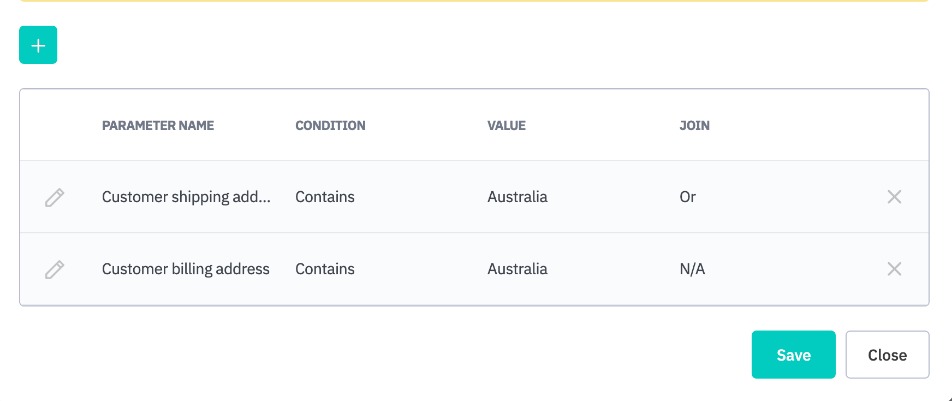
Save the filter to make it available for your sales list. Custom filters will be displayed at the top of the screen. When a filter is selected, press Edit filter to change the filter parameters, filter name, or delete the filter.

Available filter parameters:
| Parameter | Condition | Notes (if applicable) |
|---|---|---|
| Billing address line 1 | Equals, contains, does not contain, empty, not empty | |
| Billing address line 2 | Equals, contains, does not contain, empty, not empty | |
| Carrier/service | Equals, contains, does not contain, empty, not empty | |
| Combined invoice status | Equals, not equal to | Applies to invoice if a simple sale, but to all invoices if an advanced sale. Value is selected from a dropdown list. |
| Combined packing status | Equals, not equal to | Applies to pack if a simple sale, but to all fulfillments if an advanced sale. Value is selected from a dropdown list. |
| Combined payment status | Equals, not equal to | Applies to invoice if a simple sale, but to all invoices if an advanced sale. Value is selected from a dropdown list. |
| Combined picking status | Equals, not equal to | Applies to pick if a simple sale, but to all fulfillments if an advanced sale. Value is selected from a dropdown list. |
| Combined shipping status | Equals, not equal to | Applies to ship if a simple sale, but to all fulfillments if an advanced sale. Value is selected from a dropdown list. |
| Comments | Equals, contains, does not contain, empty, not empty | |
| Contact | Equals, contains, does not contain, empty, not empty | |
| Credit note send status | Equals, not equal to, empty, not empty | Filters with this parameter can only be applied to the Accounting tab. Value is selected from a dropdown list. |
| Customer name | Equals, contains, does not contain, one of | |
| Customer reference | Equals, contains, does not contain, empty, not empty | |
| Document currency | Equals, contains, does not contain | |
| Equals, contains, does not contain, empty, not empty | ||
| Fulfillment status | Equals, not equal to | Value is selected from a dropdown list. |
| Invoice | Equals, contains, does not contain, empty, not empty | |
| Invoice send status | Equals, not equal to, empty, not empty | Filters with this parameter can only be applied to the Accounting tab. Value is selected from a dropdown list. |
| Is archived | Equals, not equal to | Value is selected from a dropdown list. |
| Order invoice total | Equals, greater than, less than, greater than or equal to, less than or equal to | Filters with this parameter can only be applied to the Accounting tab. |
| Order payment | Equals, greater than, less than, greater than or equal to, less than or equal to | Filters with this parameter can only be applied to the Accounting tab. |
| Order refund | Equals, greater than, less than, greater than or equal to, less than or equal to | Filters with this parameter can only be applied to the Accounting tab. |
| Order send status | Equals, not equal to, empty, not empty | Filters with this parameter can only be applied to the General tab. Value is selected from a dropdown list. |
| Order status | Equals, not equal to | Value is selected from a dropdown list. |
| Phone | Equals, contains, does not contain, empty, not empty | |
| Picker | One of, empty, not empty | Assigned picker. For One of, select one or more pickers from a dropdown list. Filters with this parameter can only be applied to the Fulfillment tab. |
| Quote memo | Equals, contains, does not contain, empty, not empty | Filters with this parameter can only be applied to the General and Accounting tab. |
| Quote send status | Equals, not equal to, empty, not empty | Filters with this parameter can only be applied to the General tab. Value is selected from a dropdown list. |
| Quote status | Equals, not equal to | Value is selected from a dropdown list. |
| Quote total | Equals, greater than, less than, greater than or equal to, less than or equal to | Filters with this parameter can only be applied to the Accounting tab. |
| Sale attribute values: checkbox | Equals | |
| Sale attribute values: list | Equals, not equals to | |
| Sale attribute values: text | Equals, contains, does not contain, empty, not empty | |
| Sale location | Equals, contains, does not contain, one of | |
| Sales channel | Equals, one of | |
| Sales representative | Equals, contains, does not contain, one of | |
| Shipping address line 1 | Equals, contains, does not contain, empty, not empty | |
| Shipping address line 2 | Equals, contains, does not contain, empty, not empty | |
| Ship to city | Equals, contains, does not contain, empty, not empty | |
| Ship to company | Equals, contains, does not contain, empty, not empty | |
| Ship to contact | Equals, contains, does not contain, empty, not empty | |
| Ship to country | Equals, contains, does not contain, empty, not empty | |
| Ship to post code | Equals, contains, does not contain, empty, not empty | |
| Ship to state | Equals, contains, does not contain, empty, not empty | |
| Shipping notes | Equals, contains, does not contain, empty, not empty | |
| Terms | Equals, contains, does not contain | Payment terms. Filters with this parameter can only be applied to the General and Accounting tab. |
| Type | Equals | Type of sale. Available values are simple, advanced, service, and credit note. Filters with this parameter can only be applied to the General tab. |